Quantum Edge
Trade Confirmation Tool for MT4
Quantum Edge analyzes 7 technical indicators simultaneously — RSI, MACD, moving averages, volume, and price action — giving you clear confirmation signals with built-in risk parameters.
A clear, honest overview of what Quantum Edge is—and isn't—so you know exactly what to expect.
A 52% win rate with proper 1.5:1 risk-reward is more profitable than an 80% win rate with poor risk management.
Observation: Run on demo only, watch how it behaves, get comfortable with the logs.
Expected trades: 2-5
Small Live: Note emotional reactions, verify broker execution.
Focus on process, not P&L
Pattern Recognition: Priority check logs start making sense.
Confidence in the system grows
Baseline: First realistic look at performance metrics.
12-30 trades, ±2-4% net result (normal)
4 high-priority conditions must align. If each has a 60% chance of being met, probability of all four is just 13%.
Strong trends = ✅ Excellent. Choppy/ranging = ❌ Poor. Some weeks simply don't offer the right conditions.
Automatically pauses around major events (FOMC, NFP, ECB), removing 1-3 potential trading days per week.
Focuses on London and New York sessions. If you're in a different timezone, you'll see fewer opportunities.
Remember: "No trade" is a valid decision. The EA is in a trade only 5-15% of the time. The other 85-95% it's waiting for high-probability setups.
| Daily Trades: | 0-2 average |
| Weekly Trades: | 3-8 average |
| Best Month: | +8-12% |
| Challenging Month: | -2% to +2% |
| Max Drawdown: | 15-20% |
| Time to Judge: | 3-6 months minimum |
Quantum Edge operates on a sophisticated 7-signal architecture that ensures consistent analysis while adapting to market conditions.
4 non-negotiable core signals ensure basic strategy integrity, while 3 advanced filters adapt based on performance
These fundamental signals never change and form the backbone of every analysis:
Confirms overbought/oversold conditions with divergence detection
Validates momentum shifts through histogram and signal line analysis
Ensures multiple moving averages align in the same direction
Verifies price moves with corresponding volume activity
Additional validation checks that refine signal quality:
Ensures price action confirms the trend direction with bullish/bearish candle closes
Verifies price is positioned correctly relative to key support/resistance zones
Uses ADX +DI/-DI to confirm the market is actually moving in the signal direction
Recommended: $5,000 - $10,000 in your trading account for optimal position sizing.
As Quantum Edge analyzes more trades, it gets smarter about WHEN to apply its core strategy and how to adjust the advanced filters for your specific trading conditions.
Need different position sizing? Email admin@quantumedge.us for custom configuration.
Simultaneously monitors RSI, MACD, moving averages, volume, and price action patterns.
Includes configurable stop-loss, take-profit, and position sizing calculations.
Choose between manual confirmation alerts or automated signal notifications.
Helps traders learn technical analysis through real-time signal explanations.
All trading involves risk. The features described are analytical tools that process market data according to predefined algorithms. Results will vary based on market conditions, user settings, and individual trading decisions. No representation is made that any account will or is likely to achieve profits or losses similar to those discussed anywhere on this site.
The Expert Advisor processes market data through multiple technical indicators to identify potential trade setups.
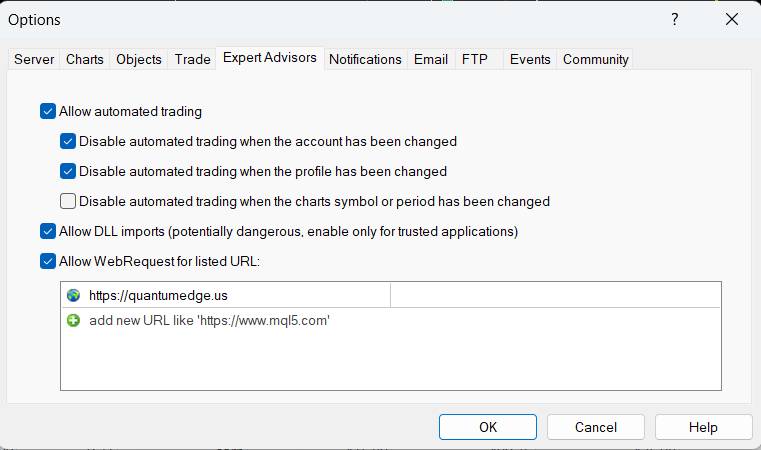
Follow these steps to install and configure Quantum Edge in MT4:
From the Downloads section below:
In MT4, go to: Tools → Options → Expert Advisors
✓ Check: "Allow WebRequest for listed URL"
✓ Add: quantumedge.us
Place files in MT4 folders:
Quantum Edge requires internet access for license validation.
You MUST add quantumedge.us to allowed URLs.
Your license key is automatically generated from your MT4 account number using the formula:
QE-(Your MT4 Account valid code)
The EA will generate and validate this key automatically - no manual entry needed!
The Quantum Edge algorithm is based on publicly available technical analysis formulas. All indicator calculations use standard MT4 functions. The exact combination parameters and confirmation thresholds are proprietary, but the underlying mathematics are standard technical analysis. We do not use machine learning, neural networks, or predictive AI.
Real screenshots from the actual platform—see exactly what you'll get.
See how Quantum Edge displays signals and manages trades in real market conditions
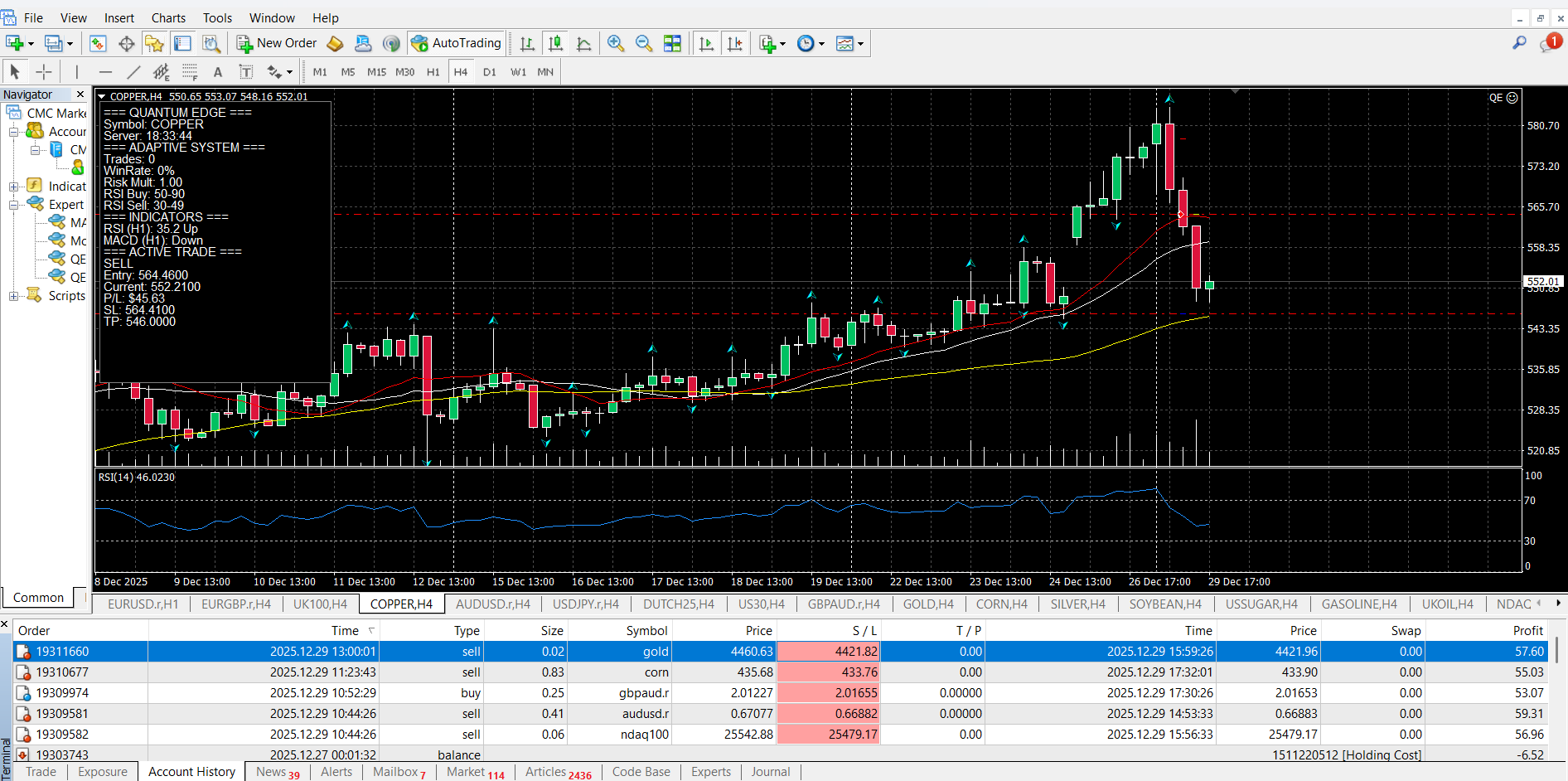
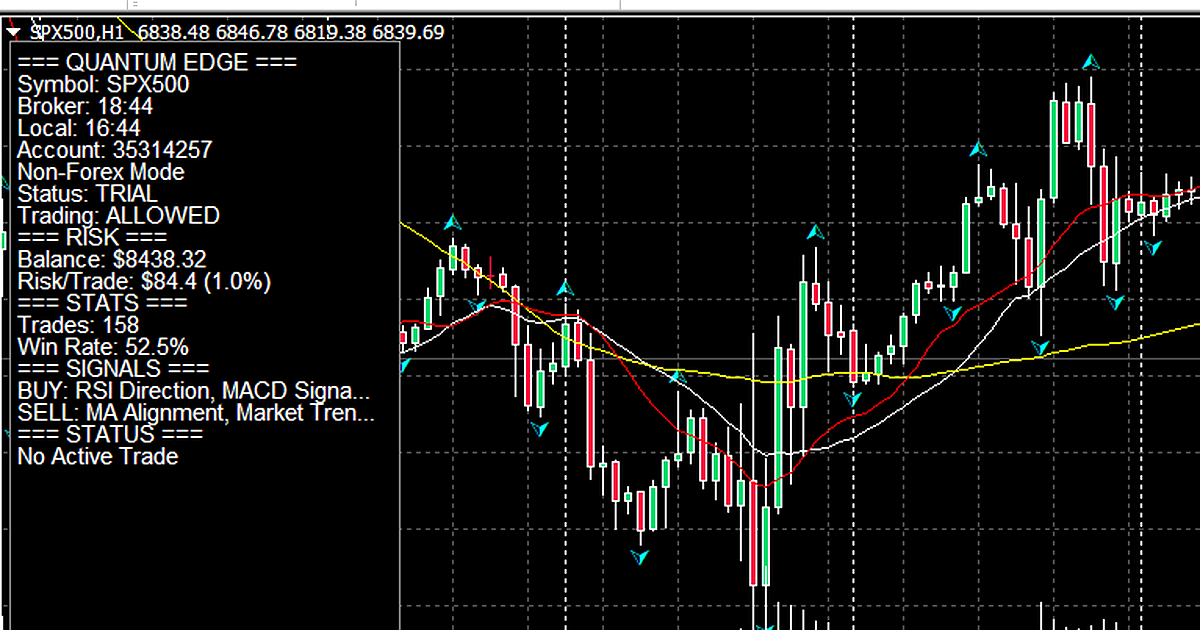
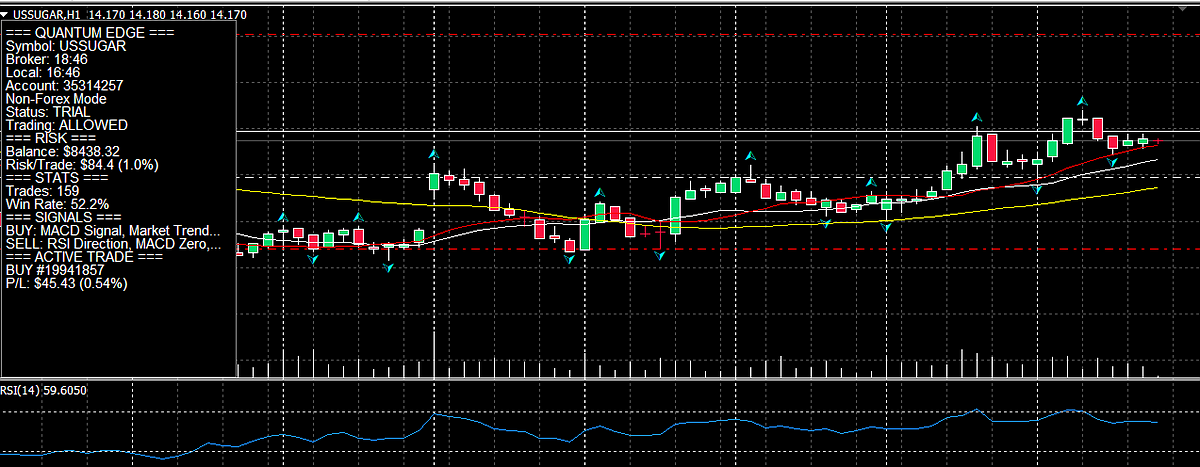
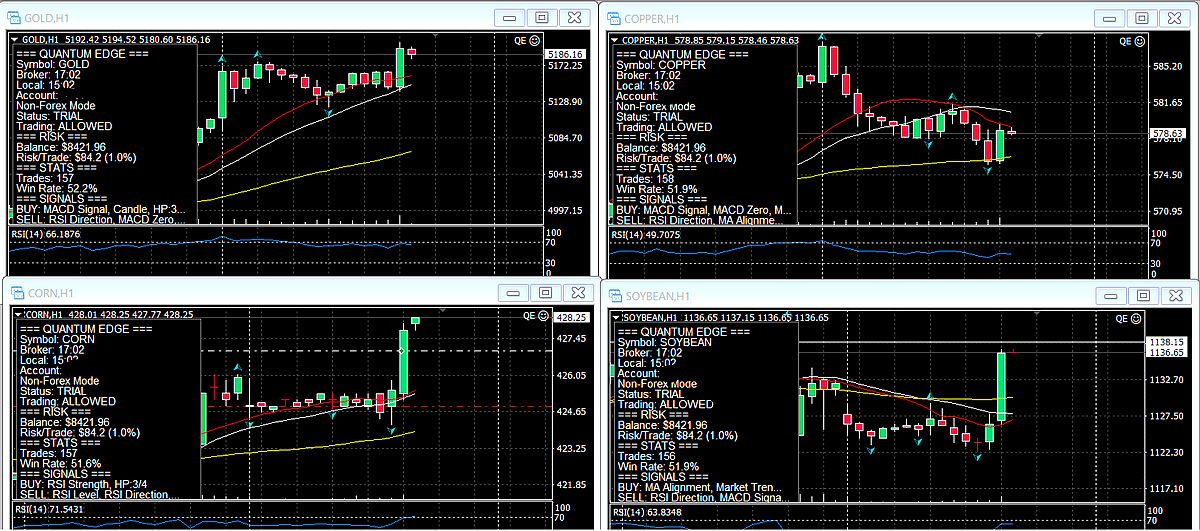
Shows the EA panel with real-time RSI, MACD, and moving average analysis. The interface displays current market conditions, signal strength, and recommended trade parameters.
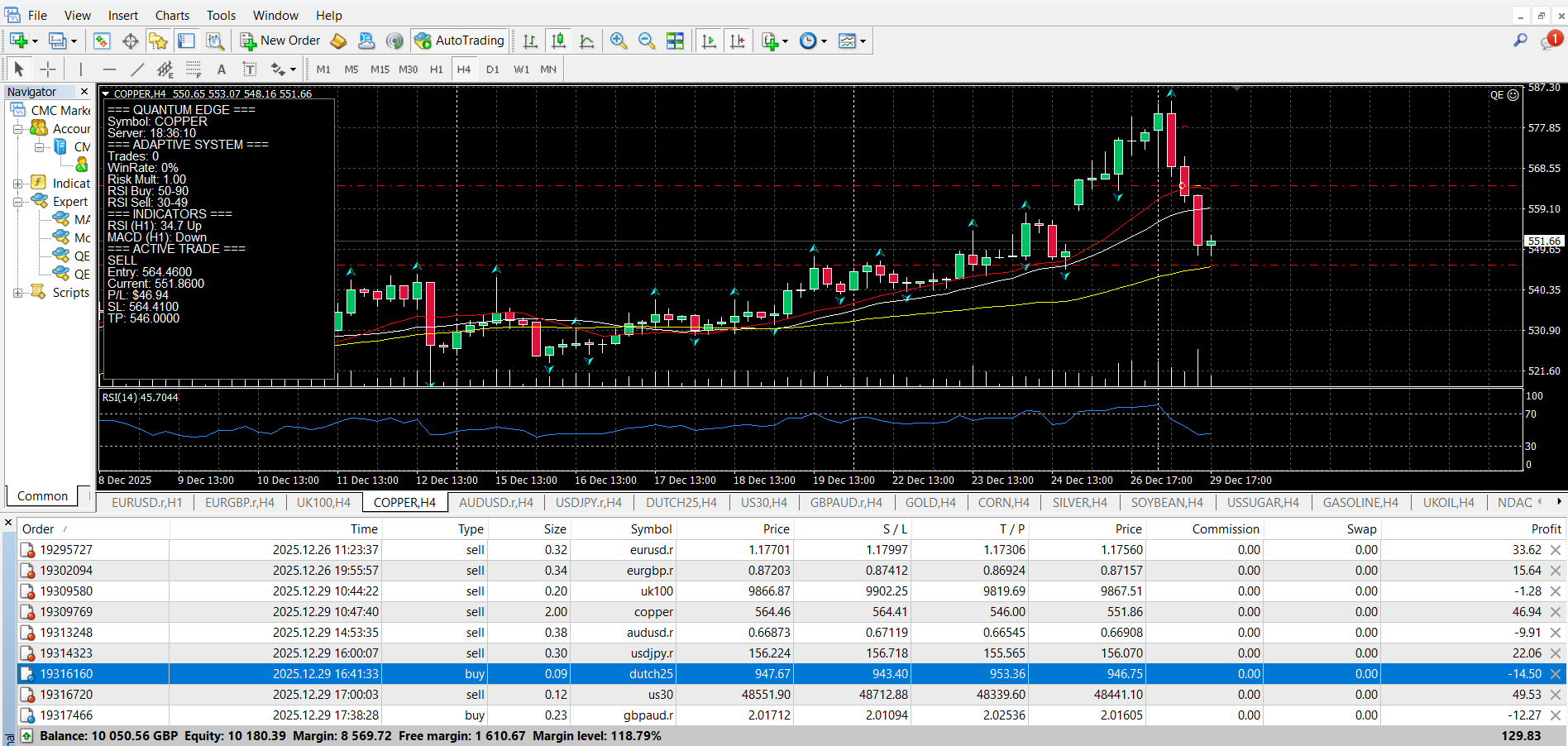
Demonstrates how Quantum Edge identifies potential trade setups by combining multiple technical indicators. Shows entry points, stop-loss, and take-profit calculations.
Step-by-step guide to installing Quantum Edge on MT4, including WebRequest setup and template configuration.
Learn to read the QE panel
Check out our video tutorials above or visit the FAQ page for detailed answers to common questions.
Download Trial to See Live Analysis"I created Quantum Edge because I was tired of second-guessing my own analysis. I wanted a tool that would tell me when multiple indicators agreed—and when they didn't. Two years of development, hundreds of hours of testing, and feedback from over 500 traders later, this is the result. It's not magic. It's just honest, multi-indicator confirmation with proper risk management built in."
$0 for first 30 days - Full Features
If it works for you, continue for only $30/month
No obligation to continue after trial
Cancel anytime
Ready to continue after your 30-day trial?
Subscribe Now - $30/monthSecure payment via Stripe
Price covers software maintenance, updates, and support.
Individual experiences vary - these are subjective opinions from real users
The experiences presented are individual testimonials and are not representative of all users. These users may have received discounted or complimentary access to Quantum Edge. Trading results vary based on individual skill, market conditions, risk management, and other factors. No guarantee of similar results is expressed or implied.
Download our free trial and educational resources. Always test in demo first.
Ideal balance: $5,000 - $10,000 for optimal position sizing with 1-2% risk per trade.
If your account is outside this range or you need custom settings, email admin@quantumedge.us
QE.ex4 - Download
30-Day Free Trial - Full Features
28-page PDF with installation and configuration
Includes risk configuration guide
AAA QE.tpl - Template file
Pre-configured chart layout
Requires MetaTrader 4 platform (free from your broker). Works with Windows. Requires stable internet connection for real-time data. May not function correctly during high volatility or news events. Not compatible with all broker servers. Always test with your specific broker and account type before live trading.